Top 20+ Android hidden tricks and features!
For Android users, we are here with Ultimate Hidden Tricks and Features Of Android. Today Android devices are remarkably smart and can be used for lots of purpose in this tech world. Till now we discussed many neat tricks for Android, and this time, we brought you some cool secret Android features. Practising these hidden features can effortlessly customize your experience with your Android device. So have a look at the complete guide below.Below we are going to discuss some cool things that might be unfamiliar to you. So have a look at these cool features below#1 Controlling the Data UsageWell, many of you will know about this feature, but I am sure very rare one utilize this. This is a very helpful feature that comes with Android. You can monitor your data usage and control it. You can set the maximum data limit for a particular date.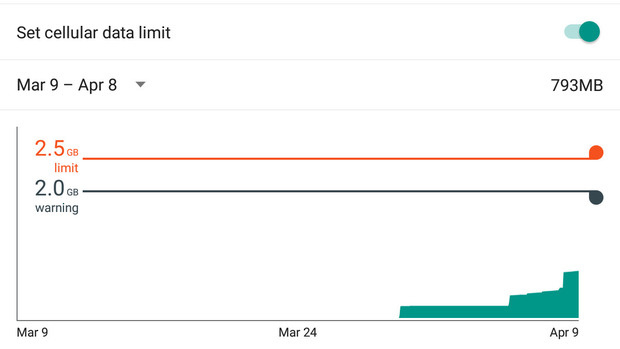 For that Open setting > Data Usage > Set Mobile Data Limit, here you can configure the data limit.#2 Quickly Change WiFi Network
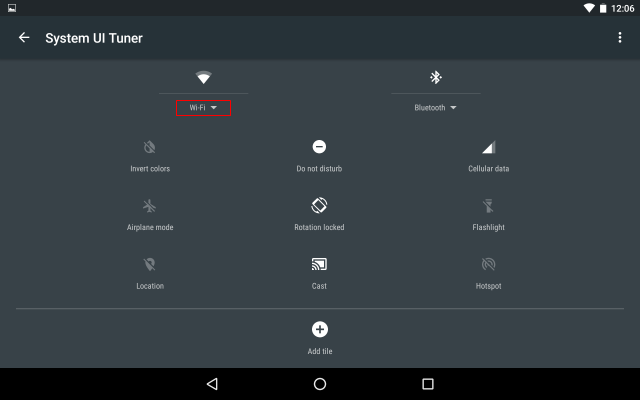 If you want to change the WiFi network, you visit Settings > WIFi or long press WiFi icon in the notification shutter. But there is an easy way to switch between WiFi networks. Just swipe down the notification a smart, and instead of pressing on the WiFi icon (disable), press on the network’s name you will be given the list of all networks.#3 Android Device ManagerThis feature allows you to track, ring, lock and wipe your Android device if you lose track of it. So, make sure to turn on this feature
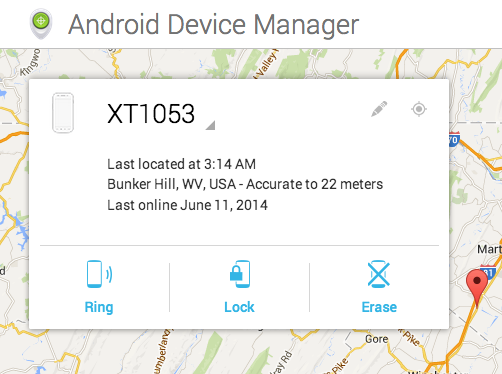 Go to Settings > Lock Screen and Security > Other Security Settings > Device Administrators > Turn on “Android Device Manager.”#4 Create Desktop Backup Password
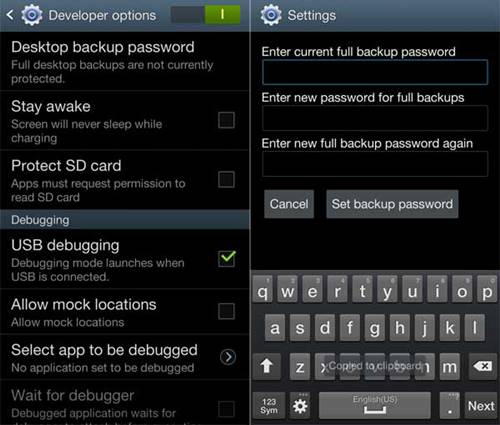 You can create the backup password for your Android device to recover it using your desktop. Just follow the below steps to proceed.
- Go to Settings -> Developer Options.
- Tap on a Desktop backup password.
- Fill in the current password, then type and retype the new password for a full backup.
#5 Reduce Battery Consumption By Altering Animation Effects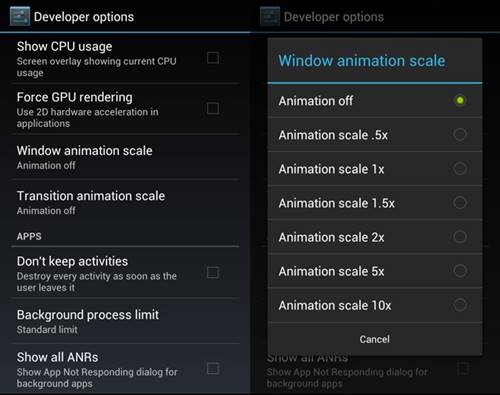 You can minimize your battery power consumption by using the neat trick in developer mode which we’ve explained in steps mentioned below.
- Go to Settings -> Developer Options.
- Scroll down and there look for Window animation scale, Transition animation scale, and Animator duration scale.
- Now adjust the scale and better is to select the 0.5x in all the above options.
#6 Display CPU Usage Overlay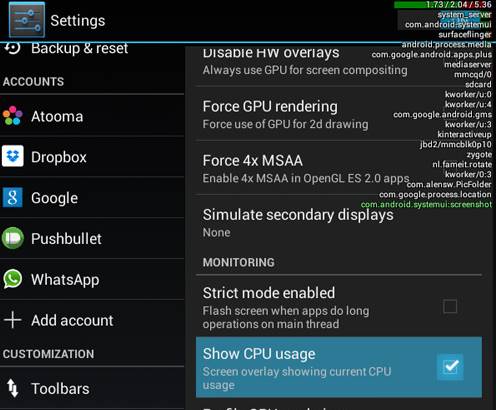 In your Android device, you can enable the full CPU meter to get displayed on your Android device by which you can easily judge which app is putting too much load on your Android.
- Go to Settings -> Developer Options.
- Tick on the Show CPU Usage option there.
- Now you will see all your CPU usage at the right of your Android screen.
#7 Stop Android Activities Completely After Closing It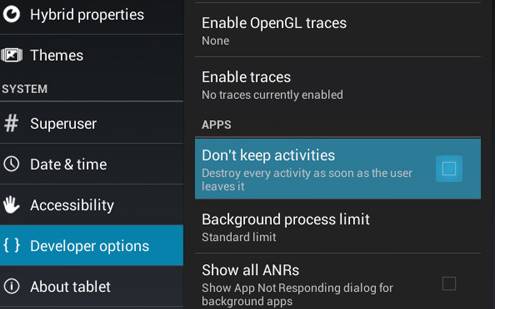 Enabling this feature will allow you to stop activities when you close it completely. This will reduce battery consumption and even data usage too.
- Go to Settings -> Developer Options.
- Tick on Don’t keep activities.
- Now after this, you can rollback settings by unticking this.
#8 Fake The Current GPS Location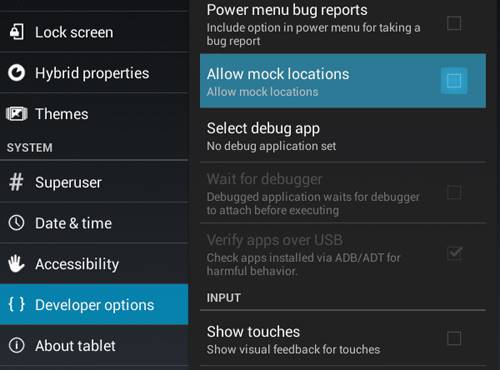 For this, you can use the Mock the Location to make your GPS tracker tool track your exact location which can be used by many apps to spy on you.
- Go to Settings -> Developer Options.
- Tick on Allow Mock Location.
- This will fake your GPS location tracker on your Android.
#9 Enable USB Debugging Mode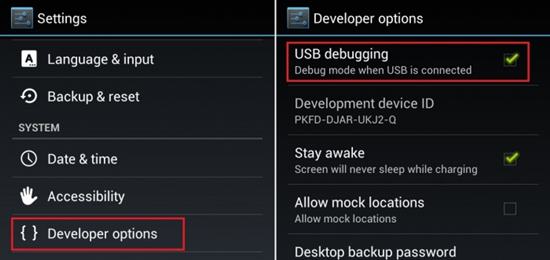 In many cool apps, USB debugging is used for the perfect working of your Android with your PC. And this feature is only available in developer options that you can implement from below.
- First of all, go to Settings -> Developer Options.
- Tick on USB Debugging checkbox there.
- Select OK on the pop up appears saying “Allow USB Debugging?”.
#10 Enable Higher Graphic Render Option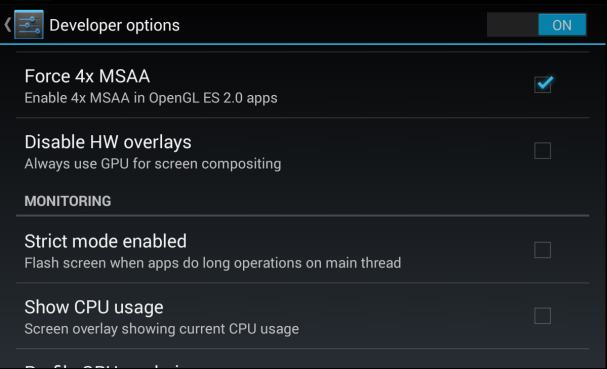 MSAA For OpenGL Games can be enabled on your Android device to allow Android games to run with high graphics quality that can be enabled by:-
- Go to Settings -> Developer Options.
- Tap on Force 4x MSAA.
#11 Make Your Device Awake while Charging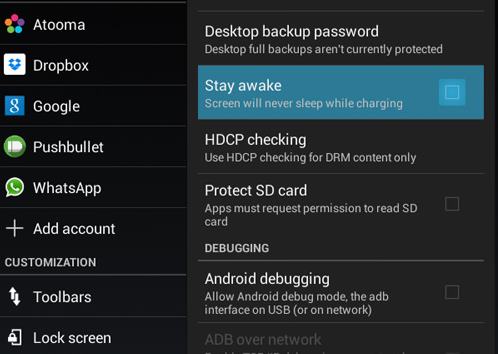 You can make your Android active while you were charging it and it is the best indicator so that you can enable this cool feature as:-
- Go to Settings -> Developer Options.
- Tap on Stay Awake to tick it.
#12 Using Google Chrome To Access File Directory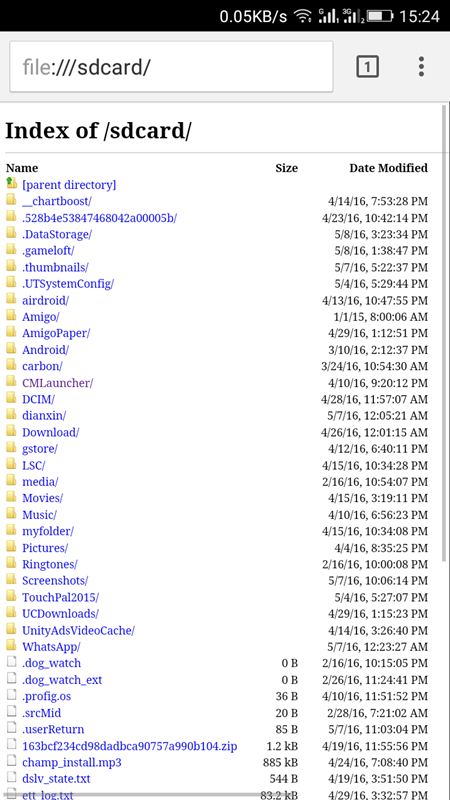 It is the ultimate hidden ability on your Google Chrome browser that you might not believe, but you can see your SD memory data in your Chrome browser. You can do so by:-
- Open Google Chrome browser on your Android Smartphone
- Now type file:///sdcard/ on URL bar and search.
#13 Using Google Maps Offline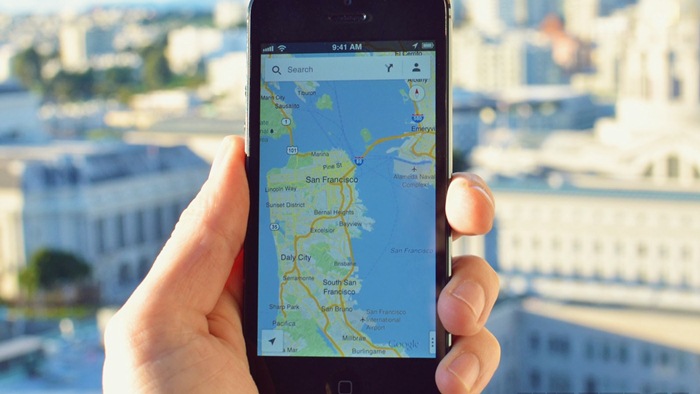 Your Android can help you download maps of the particular area in your Android to browse it when you don’t have the internet connection. Many of you will think that it is impossible, but actually, it is possible You can go through our Article on How to use Google Maps Offline to know about it.#14 Sending And Receiving Your Android SMS on PC
 If you are using an Android smartphone, then you have a fashionable solution by which you can get all your SMS on your PC. Moreover, you can browse them all on your PC, and there will be no need to pick up your Android and read every message.
- You need to download Airdroid on your Android Smartphone first.
- After you download the app on your smartphone, go to web.airdroid.com from your computer browser.
- Now scan the QR Code Given on your computer screen with the help of your Android mobile app.
#15 Control Your TV Using Android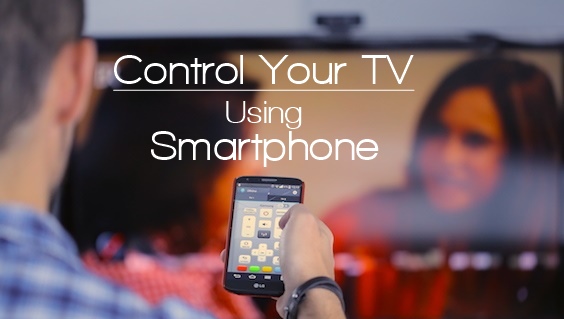 You can use your smartphone as a remote controller to control all your smart devices. There are some apps available on the Google Play store that helps to control your IR electronic devices remotely.#16 Access Notification Settings In A Quicker Way
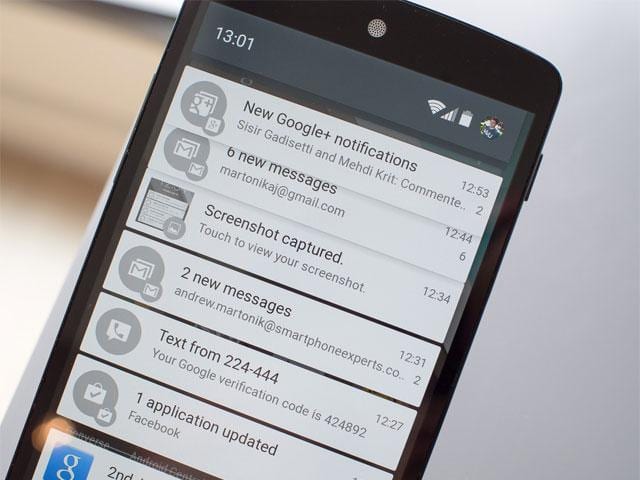 Well, notifications are something that’s useful. However, too many notifications can become irritating after some time. Users can adjust or turn the notifications off for a particular app by holding on a notification in the drop-down notification bar. Users will see a setting icon next to the notification, from where they can turn the notification off for any particular app.#17 Display Touch Points
 Well, if you love to make some tutorial on your Android smartphone just to share with your friends then this will be useful. This option enables a white dot on places where you have touched. Head over to Developer options and then search for the option “Show Touches” and enable it.#18 Simulate Color Space
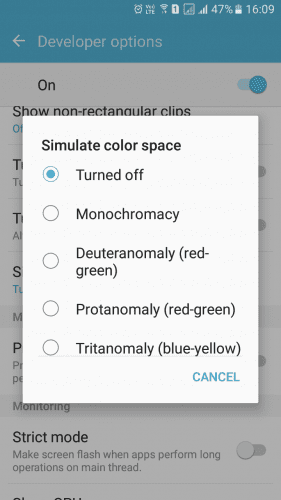 Well, Android operating system implements lots of the features. Once you have enabled the developer mode, you can also simulate the colour space to reduce the eye strain. Users just need to head over to the Developer Options and then needs to find “Simulate Color Space” and then can change the filters of Android.#19 Using The Power Button To End Call
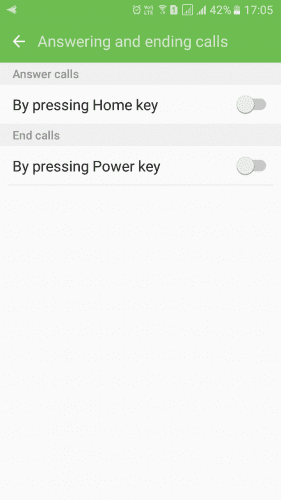 While we are on the call, most of the time our thumb is near the power button. So, enabling the Power button to End call might be the easiest way to end the ongoing call. You need to head to Settings > Accessibility and search for the option ‘Power Button Ends Call” and then enable it.#20 High Contrast Text
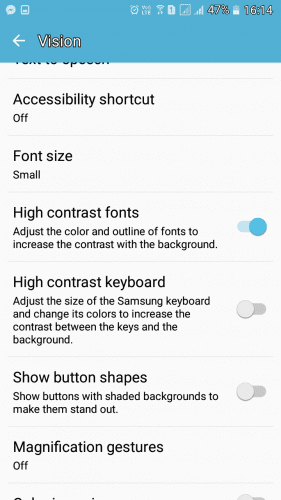 If you have a weak vision, then you can enable the High Contrast Text from Settings > Accessibility. Once you enabled the option, your text will appear crisper and easy to read.#21 Cast Your Android Screen
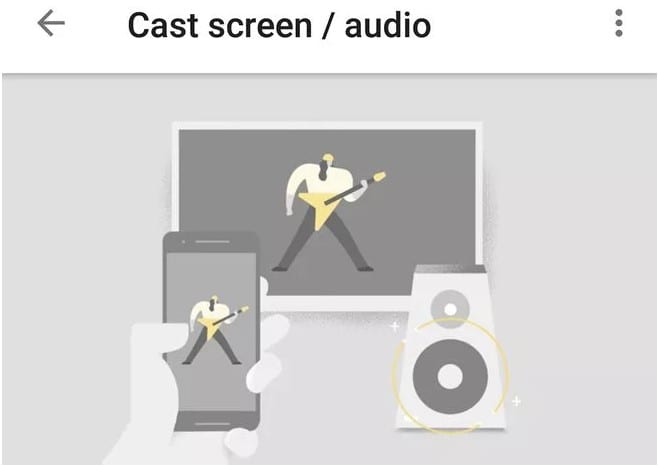 Well, if we look around for a number of years, we have been able to broadcast our Android phone’s display to the larger screen using a Chromecast. Well, Android users just need to make sure that they have installed the Google Home app for Android. Open the app, tap Cast screen/audio from its menu, and then choose your Chromecast. Through this, you can even mirror your phone to a larger screen.#22 Run Apps Side By Side
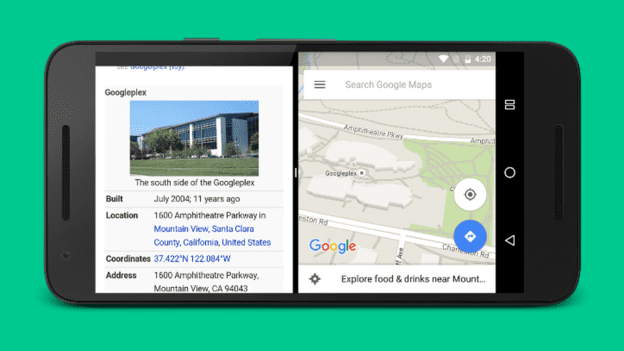 Well, this new feature is added to Android 7.0 Nougat. This new feature gives a user the ability to run apps side-by-side or one above the other. To set up the new feature, tap the Overview button (square icon below the screen) and then choose which of your recent apps you want to see.You just need to hold and drag that app’s title bar to the top or left of the display. Once done, simply choose another running app to appear alongside or under it.#23 Save Web Page As PDF
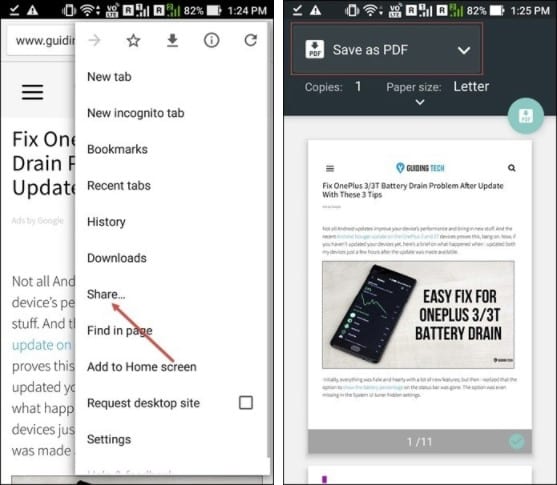 Well, if we talk about web browser on Android device, without any doubt, Google Chrome is amongst the first choice of users. Actually, Google Chrome hides a secret which eventually allows users to save a web page as PDF format.You just need to open the web page which you want to save and then head over to Share > Print and then save the web page as PDF.#24 Boot Your Android In Safe Mode
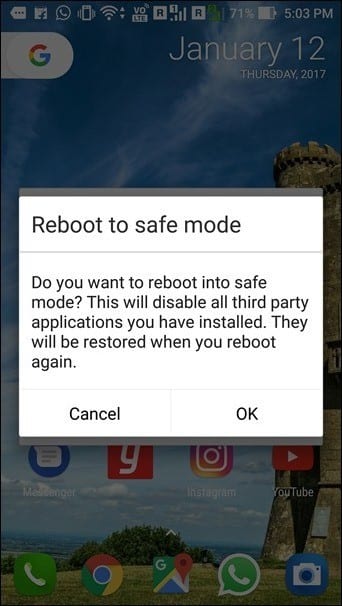 Well, there are times when we have to face the erratic behaviours of the apps installed on our device. Well, sometimes we mistakenly install some apps that display an array of obstructive ads that don’t allow you to do anything else.In such situations, it’s best to boot the Android phone in safe mode. Safe Mode disables all the third party apps which makes it easy to recognize and remove bad apps. To boot the phone into safe mode, tap on the power button and long-press the option to power off.


So above are all Hidden Secrets Of Your Android Device. You can give a try to all these cool features on your Android device and can have lots of innovative experience on your Android device. Hope you like our work, do share it with others too.


Comments
Post a Comment